01
Connect your own accounts.
Connect Gmail, Google Calendar, Slack, Notion, HubSpot and dozens of other tools. Connect once and GENI uses them in every request, on your account and with the permissions you grant.
Go to Connectors
Open your dashboard and go to the Connectors tab.
Connect in one click
Click a tool and log in to your own account. One click via a secure connection, you stay in control.
Done, GENI uses it
GENI uses the connection automatically as soon as it is needed for your request.
You can revoke a connection at any time from your dashboard. Your data stays yours.
02
Activate skills.
Skills are AI capabilities you deploy with a single message, from email and social media to SEO, GEO and full content production. Stack them into workflows GENI handles on its own.
Personal skills
Gmail, calendar, Drive, daily planning, transcription and image generation. Your personal work runs on its own.
Business skills
The 5 Growth Engines: SEO and GEO to get found on Google and in AI, the AI Content Engine that turns one video into ready-to-post clips, and the Authority Engine with pillar and cluster articles. Plus Deep Research, lead research and social media.
New skills every month
60+ skills and 5 Growth Engines, with more added every month. Stack them into complete workflows GENI runs autonomously.
03
GENI remembers everything.
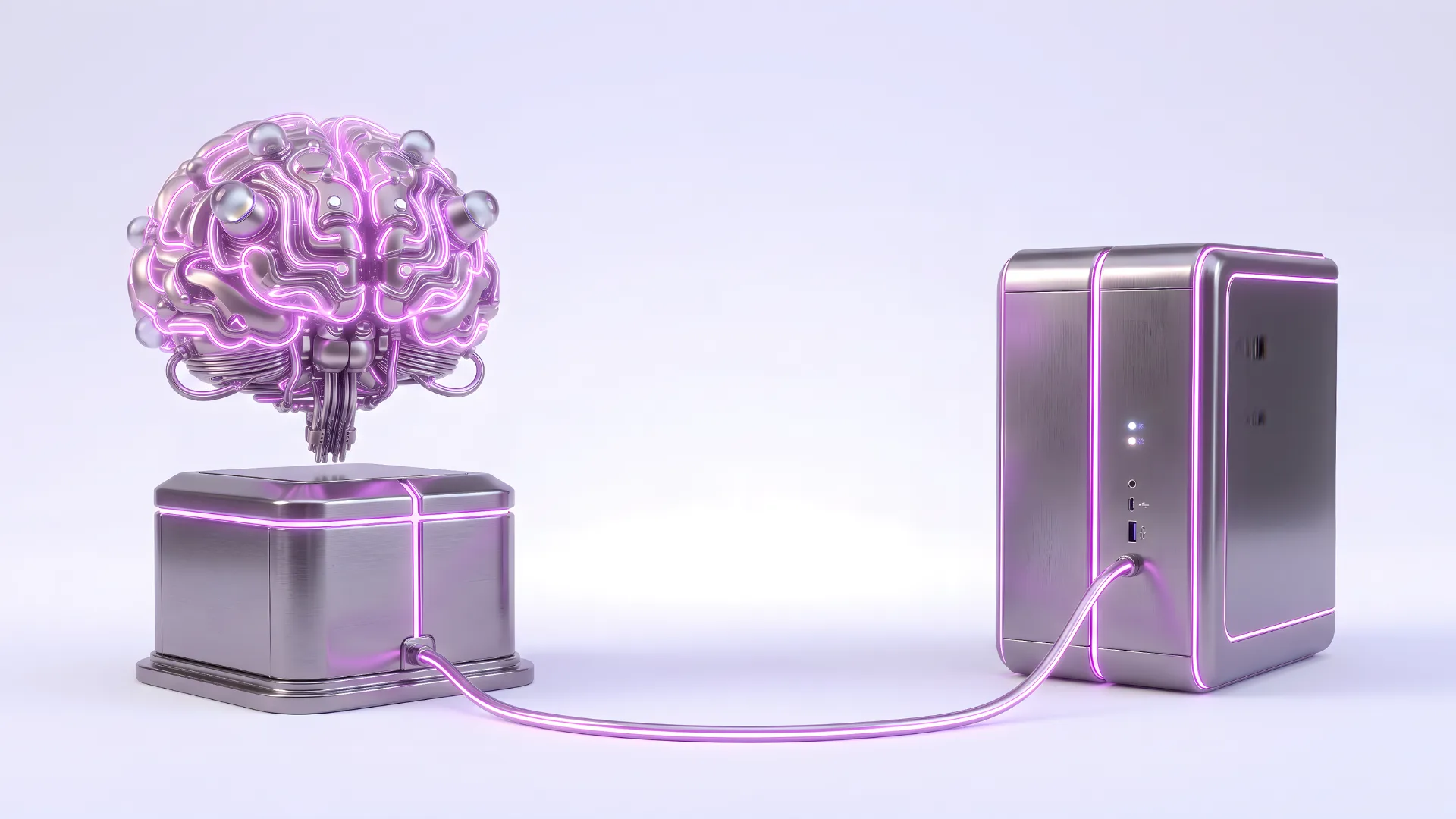
No repetition, nothing to re-explain. GENI has real memory: it remembers your facts, preferences, goals, and learns from what you do on the platform. You search it with a question and manage it yourself.
04
You work together in the Workspace.
The Workspace is where you and GENI meet. Notes, to-do lists, reminders and a timeline in one environment, tied together by the same memory. You capture loose thoughts, GENI turns them into structure, and everything your assistant does for you lands back here. So you no longer keep track of what is going on anywhere else.
Capture everything instantly
Type a note, dictate one, or save a message from your chat with GENI. Everything lands straight in your Workspace, with tags and folders, so no more scattered notepads or loose jottings.
Ask for it back in plain language
Forgot where you noted something? Just ask GENI. It searches by meaning, not exact words, and surfaces the right note, even if you phrased it differently.
From brain dump to plan
Dump all your loose ideas in one message. GENI turns them into a prioritized task list with due dates, ready for your approval. From an SEO or GEO audit it even stages the key issues as tasks on its own.
Everything on one timeline
Tasks with priority and reminders that nudge you on time, plus a timeline showing what is going on: scheduled, recommended, done and published. You see at a glance what you and GENI have running.
Notes and tasks are free on every plan. GENI driving your Workspace (semantic search, voice notes, task suggestions): from Starter.

05
Works while you sleep.
Schedule tasks with Automations. GENI runs them automatically at the time you choose, daily, weekly or monthly, including actions in your connected tools like sending mail or saving data.